
How to organize files on your computer
Create a simple folder structure, name files clearly and sort Downloads safely. Includes examples and checks to make before moving or deleting files.
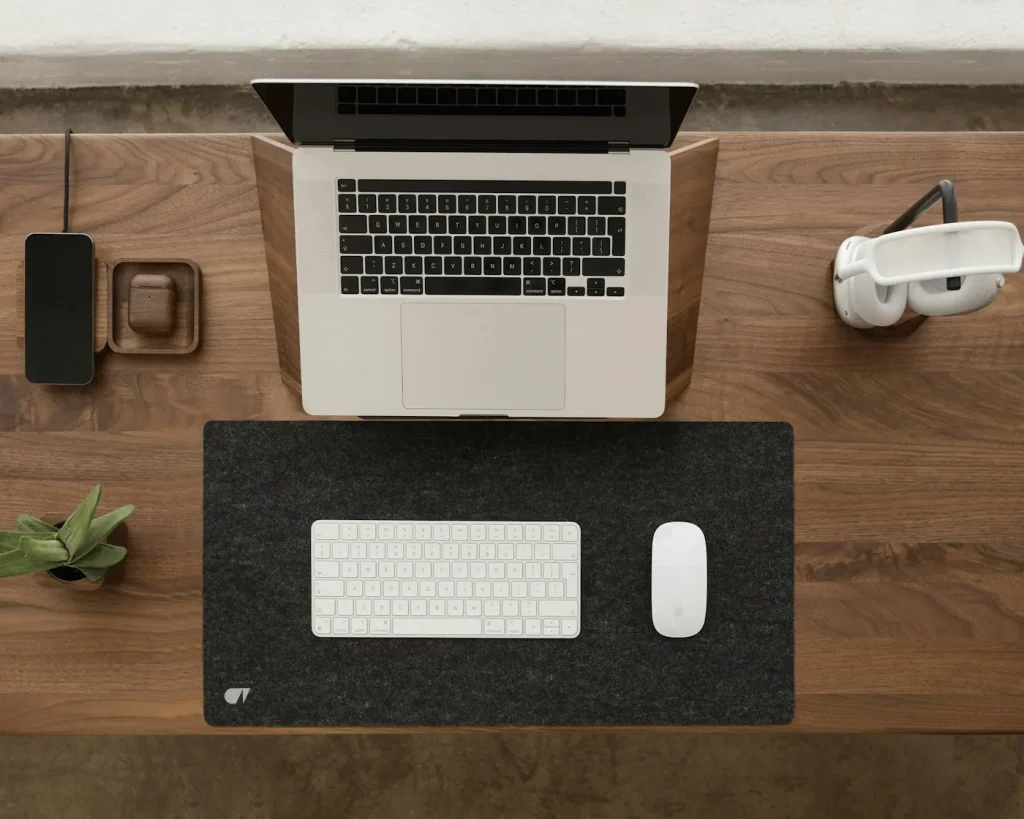
Organize computer files by giving each project or purpose a clear folder, choosing consistent filenames, and reviewing new downloads regularly. Begin with your own documents, not application or system folders.
You do not need a perfect filing system for every file you have ever saved. A structure that helps you locate this week’s work is a useful starting point.
Back up important files first
Before a large cleanup, make a backup of documents you cannot replace and confirm that you can open a few files from it. Know whether the folder you are sorting is local, shared with other people, or synchronized to a cloud service.
Cloud synchronization can carry changes and deletions across devices. For example, Microsoft explains that deleting shared OneDrive items can delete them for everyone. Do not assume that a synchronized copy will always protect you from an accidental deletion.
Choose a small set of main folders
Use names that match the way you look for things. A personal computer might have these folders inside Documents:
- Home: household records, receipts and useful instructions
- Work: folders for individual projects or clients
- Personal projects: writing, learning and hobbies
- Archive: completed material you still need to retain
- To sort: a temporary inbox, reviewed regularly
Keep the structure shallow at first. If you must open six folders to reach a regularly used document, combine a level or create a shortcut. Follow your employer’s filing and retention rules for work material.
Sort your files step by step
Choose one starting folder
Downloads or a crowded desktop is a reasonable place to begin. Work through a small group at a time. Sorting by date or file type can help you spot related files, but open unfamiliar items before deciding what they are.
Create folders around actual work
For a home renovation, a folder named “Kitchen renovation” is more useful than scattering the quote, measurements and receipts into unrelated places. Add subfolders only when the contents become hard to scan.
Rename vague files
Replace names such as “document2” with a subject and a useful detail. For example, use
kitchen-cabinet-quote-2026-10-29.pdf. Keep the filename extension unchanged; changing an extension does not convert a file.Move a small batch and check it
Move a handful of files, then open them from their new location. For shared or linked documents, confirm that moving them will not break someone else’s access or a workflow that relies on the old path.
Separate active and completed work
Keep current projects easy to reach. Move finished projects into an archive when you no longer use them regularly. Archive means retained but less visible; it is not the same as deleted.
Review possible duplicates carefully
Compare names, content, dates and file sizes. Two similarly named files may contain different edits. Keep uncertain files in a review folder and avoid emptying the recycle bin immediately after a large cleanup.
A naming pattern you can keep using
Try topic-detail-date-version, using only the parts that help. Examples include holiday-packing-list.docx, water-bill-2026-10.pdf and website-outline-v02.docx.
The YYYY-MM-DD date pattern sorts naturally by year, month and day. For actively edited documents, use the version-history features of your chosen application when available instead of creating a long chain of “final-final” copies.
What to leave alone
Do not reorganize operating-system directories, installed program folders, hidden configuration files or application libraries unless you understand the software’s instructions. Photo, music and editing applications may maintain databases that depend on specific file locations.
For an unfamiliar file, investigate its purpose before deleting it. If storage space is the main problem, use your operating system’s documented storage tools rather than removing random folders.
Keep the system from filling up again
Save important downloads to their final folder when you first use them. Give your temporary inbox a short review during your weekly plan. If a folder repeatedly attracts unrelated files, rename it or divide it into two clearer categories.
Common questions
Should I sort by year or by project?
Use the feature you remember first. Bills often suit year-based folders; a project usually works better with its documents kept together. You can use dates in filenames without building the entire structure around dates.
Is one giant folder with search enough?
Search is useful, but clear names and a few folders make it easier to judge whether you found the right file. A simple combination usually works better than relying on memory alone.
Keep useful screen captures in a clearly named folder too. See how to take and save a screenshot on your laptop before adding them to your filing system.